









GO Map: Useful Features
| How to Use the Shared Map | |||
|---|---|---|---|
| Top | Map Display Toggle | Sharable Information | Useful Features |
| About GO Raids Level | PUSH Notifications | Supported OS & Browsers | Reports & Fraud Prevention |
| User Registration | Contact Us | ||
Contents
How to View Post History
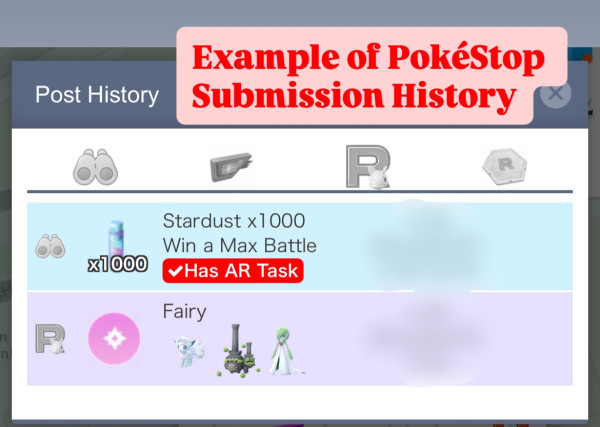
You can check the past posts for each spot in chronological order by tapping the “Clock Icon” inside the spot’s balloon.
Posts are managed separately for normal periods, event periods, and limited events. For example, if no event is ongoing, only the normal post history will be displayed.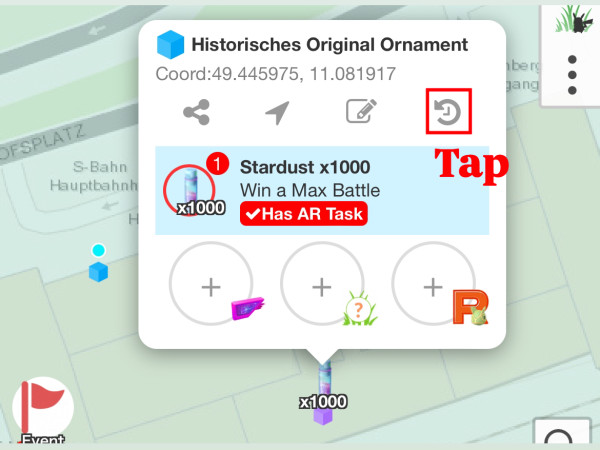
You can also view your own posting history by selecting the “Profile Icon” at the bottom left and opening your “Journal”.
In the “Journal”, you can see not only your posting history but also the total number of posts by category.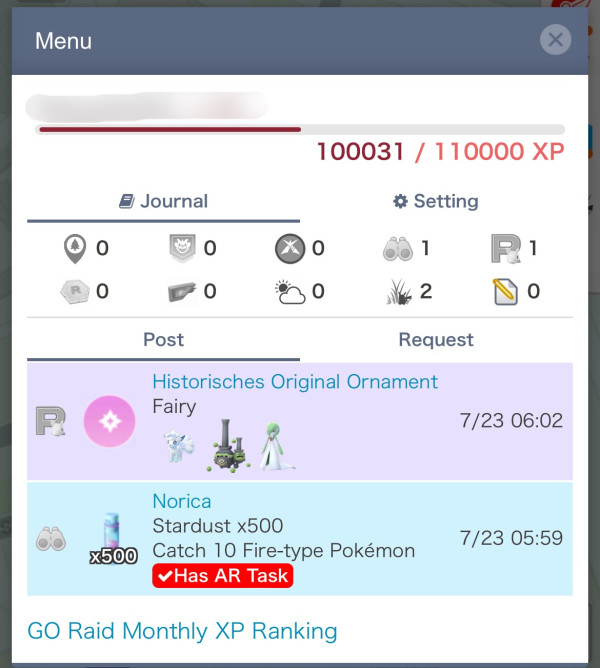
Verified Task / Raid Check Feature
When you register a task, the PokéStop icon changes to purple so you can instantly see that it’s verified.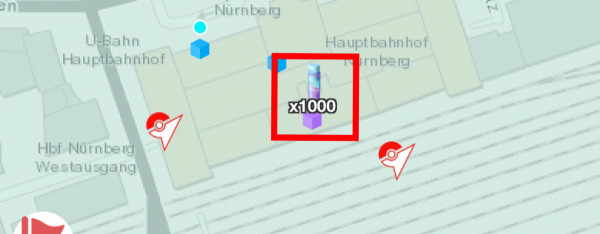
When you tap “Check” at the top right of a Gym balloon where a raid is happening, the Gym icon will also change to purple to show it’s verified.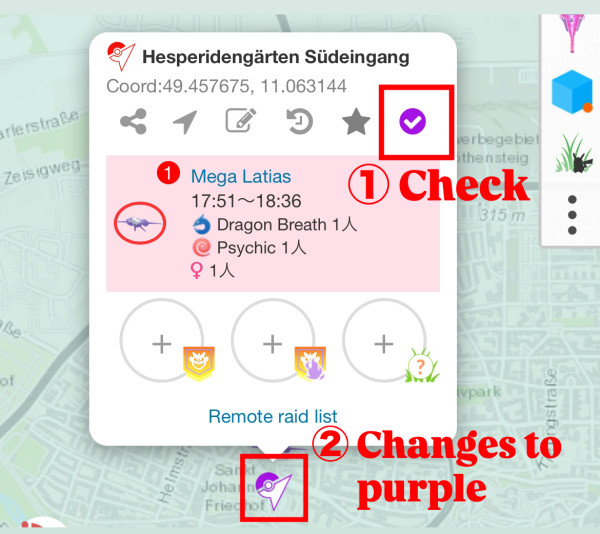
Favorite Gym Registration
When you select a Gym hosting a raid and tap the “Star Icon” at the top right of the balloon, you can mark that Gym as a favorite.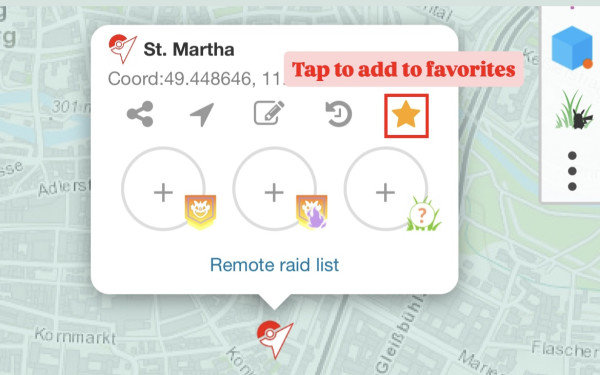
By adding it to your favorites, you can choose to receive PUSH Notifications only for favorites, or filter for favorites in Search Spots.
Sharing Map URLs
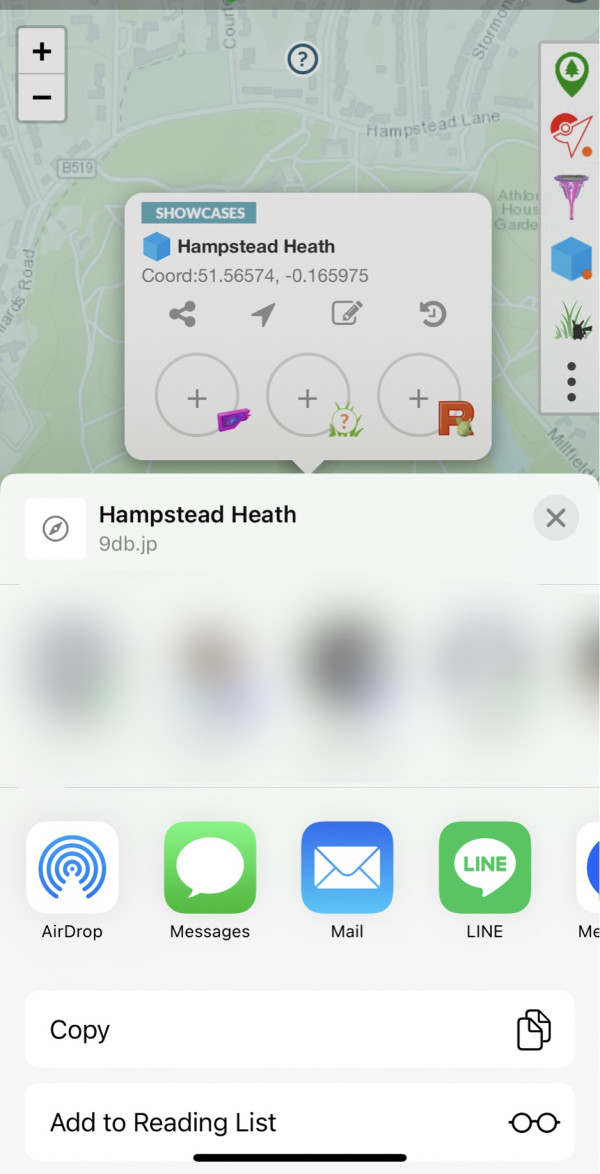
Tap the “Spot or Icon” you want to share, then tap the “GO Raids Mark Icon” inside the balloon to get and share a URL that indicates that location.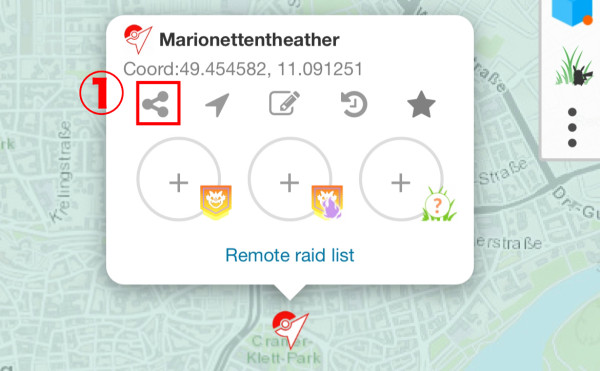
Linking with Google Maps
Tap the “Spot or Icon” you want to share, then tap the “Current Location Icon” in the balloon to open the location on Google Maps. You can also get directions from there.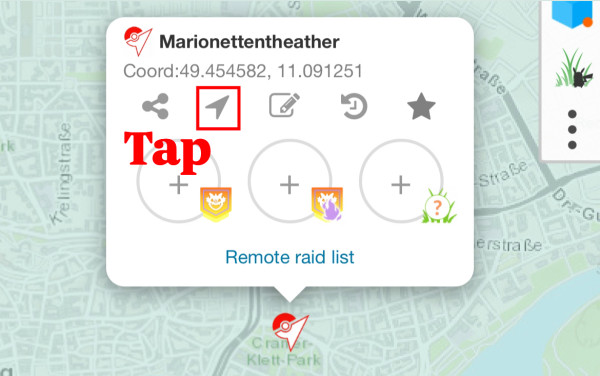
Custom Icons
By setting custom icons, you can link any image to Pokémon displayed on the map.
This uses the Pokémon’s Pokédex number: create images named with the Pokédex number and host them on a network location to use them as custom icons.
For example, if you set your custom icon to https://test.com/@ID3@.png, you need to have images like 001.png, 002.png, etc. on test.com.
Custom Icon Specifications
- Only https is supported; http is not allowed
- Only PNG format is supported
- Alolan forms: -a.png
- Deoxys: -d.png (Defense), -a.png (Attack), -s.png (Speed)
- Giratina: -o.png (Origin)
- Armored Mewtwo: -armored.png
Efforts to Reduce Network Traffic
Reducing Number of Requests
For example, if you filter to show only Gyms or PokéStops with info, the map won’t request data for spots without data when zooming in.
Also, by preloading info outside the screen during horizontal movement, we reduce repeated requests.
This process currently works for zoom levels below 13.
Reducing Image Data Transfer
Almost all images displayed on the map are cached, so locally saved images are used first during communication.
When reused locally, no data transfer occurs for those images.
Mini Snorlax
A mini Snorlax briefly appears in the bottom left when communication occurs.
Use this to check when requests happen.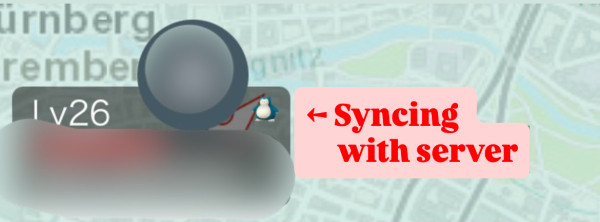
App-Only Features
Notification Settings Tab
You can easily toggle the ON/OFF status for the notifications below.
For map-related notifications such as raid bosses or wild spawns, use the bell icon at the bottom right of the map. (For detailed PUSH notification settings, see here)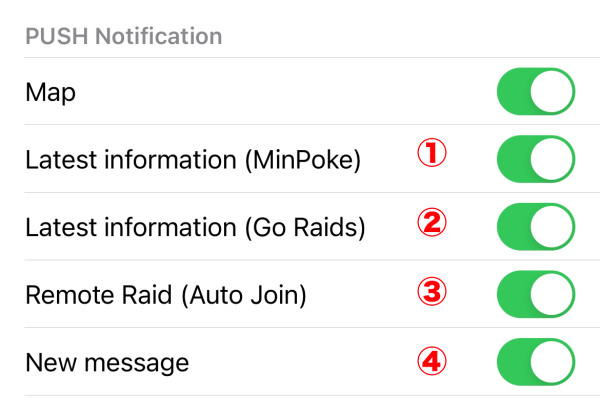
| ① | Receive notifications about the latest GO Raids strategies |
| ② | Receive notifications about the latest strategies from GO Raids (Minpoke English version) |
| ③ | Notification when it’s almost your turn in an Invite Raid |
| ④ | Notification when you receive a message from another user |


 9D
9D